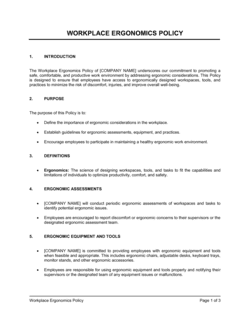
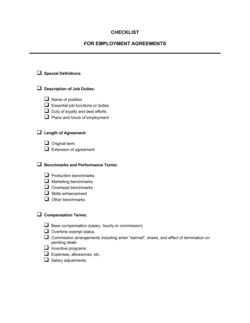
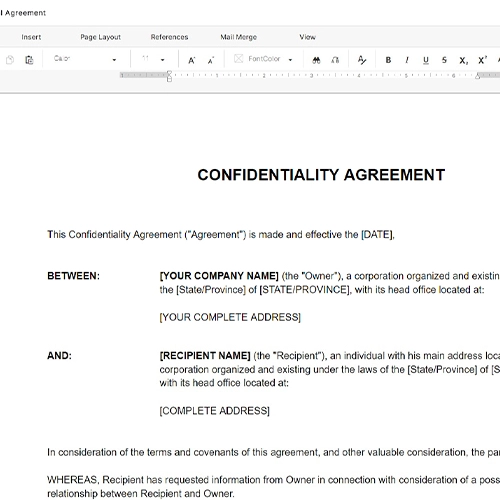
Checklist Ergonomics

Free download β€’ Use as a template β€’ Print or share

2 pagesβ€’20–25 min to useβ€’Difficulty: Standard
Learn more ↓
FreeChecklist Ergonomics Template

At a glance

What it is
An Ergonomics Checklist is a structured assessment form used to evaluate whether a workstation β€” office desk, computer setup, or production station β€” meets ergonomic standards that reduce the risk of musculoskeletal injury. This free Word download gives you a ready-to-use form you can edit online, print for on-site walkthroughs, and retain as a compliance record.
When you need it
Use it when onboarding new employees, after any workstation change or relocation, following a reported discomfort or injury, or as part of a scheduled annual workplace safety audit.
What's inside
Employee and workstation identification details, chair and seating adjustments, monitor and display positioning, keyboard and mouse placement, lighting and glare assessment, and a corrective action log with sign-off fields.

What is an Ergonomics Checklist?

An Ergonomics Checklist is a structured assessment form used to evaluate whether a workstation meets the physical setup standards that reduce the risk of musculoskeletal injury for the employee using it. It guides an assessor β€” or the employee themselves β€” through a systematic review of chair height and lumbar support, monitor and display positioning, keyboard and mouse placement, lighting conditions, and desk clearance, recording the status of each item and logging any corrective actions required. By capturing both the findings and the follow-up steps in a single dated document, the checklist functions as both a preventive health tool and a compliance record.

Why You Need This Document

Musculoskeletal disorders are among the most common and costly workplace injuries, accounting for a significant share of workers' compensation claims in office and production environments alike. Without a documented assessment process, employers have no evidence that ergonomic risks were identified and addressed β€” leaving them exposed to regulatory scrutiny under OSHA's General Duty Clause in the US, DSE regulations in the UK, and equivalent standards in other jurisdictions. Beyond liability, unresolved workstation problems compound quietly: a monitor that is 5 cm too low causes neck strain that becomes a cervical injury claim 18 months later. This template gives HR managers, safety officers, and facilities teams a consistent, repeatable process that takes under 30 minutes per workstation and produces an auditable record showing exactly what was found, what was corrected, and when.

Which variant fits your situation?

If your situation is…Use this template
Assessing a standard office desk and computer workstationOffice Ergonomics Checklist
Evaluating a remote or home office setupRemote Work Ergonomics Checklist
Assessing a standing desk or sit-stand workstationStanding Desk Ergonomics Checklist
Reviewing a manufacturing or production floor workstationIndustrial Ergonomics Assessment Form
Logging a post-injury workstation modificationCorrective Action Ergonomics Log
Conducting a company-wide annual safety auditWorkplace Safety Inspection Checklist

Common mistakes to avoid

❌ Conducting the assessment without the employee present

Why it matters: An empty-chair assessment cannot capture the employee's actual sitting height, reach habits, or existing discomfort β€” making most findings inaccurate.

Fix: Schedule the assessment during the employee's normal working hours and observe them seated in their habitual position before completing any checklist item.

❌ Logging issues without assigning ownership or due dates

Why it matters: Open corrective actions without a named responsible person and deadline are almost never resolved β€” leaving the employer with documented evidence of a known hazard that was ignored.

Fix: Assign every corrective action to a specific individual by name and set a due date of no more than 5 business days for low-cost adjustments like chair height or monitor repositioning.

❌ Skipping the employee acknowledgment signature

Why it matters: Without a signed acknowledgment, the employee can credibly claim they were never informed of the assessment findings or recommended adjustments β€” weakening the employer's defense in a subsequent injury claim.

Fix: Make the acknowledgment signature a mandatory final step before filing, and provide the employee with their own copy of the completed form.

❌ Filing completed checklists with no follow-up verification

Why it matters: A checklist that records corrective actions but never confirms they were completed provides no actual risk reduction β€” it only documents that a problem was known.

Fix: Conduct a brief re-inspection within two weeks of the original assessment to verify each corrective action was implemented and mark it resolved in the form.

The 10 key fields, explained

Employee and workstation identification

Assessment date and assessor name

Chair and seating adjustments

Monitor position and display settings

Keyboard and mouse placement

Lighting and glare assessment

Desk height and work surface

Phone and accessories

Corrective actions and follow-up

Employee acknowledgment

How to fill it out

  1. 1

    Record employee and workstation details

    Enter the employee's full name, job title, department, and the unique identifier or physical location of the workstation before starting the walkthrough.

    πŸ’‘ Assign workstation IDs in advance β€” a consistent naming convention (e.g., B2-F3-D14 for Building 2, Floor 3, Desk 14) makes follow-up audits faster.

  2. 2

    Observe the employee seated in their normal working position

    Ask the employee to sit as they normally would before you evaluate the setup. Do not let them adjust their posture for the assessment β€” you need to see their habitual position.

    πŸ’‘ Arrive unannounced or ask the employee to continue working for two minutes before you begin β€” this reveals their default posture, not a staged one.

  3. 3

    Assess chair and seating adjustments

    Work through each chair criterion β€” seat height, lumbar support, armrest level, and seat depth β€” marking Yes, No, or N/A. For each 'No', note the specific adjustment needed in the corrective action log.

    πŸ’‘ Have the employee demonstrate how they currently adjust the chair. Many ergonomic chairs have adjustment levers that employees have never used.

  4. 4

    Check monitor, keyboard, and mouse positioning

    Measure or estimate viewing distance, confirm the top of the monitor is at or slightly below eye level, and verify wrist and elbow angles with the keyboard and mouse in use.

    πŸ’‘ A simple right-angle guide cut from cardboard is faster and more accurate than estimating elbow angles by eye.

  5. 5

    Evaluate lighting, glare, and accessories

    Note the time of day on the form, check for screen glare from windows and overhead fixtures, and confirm that a headset is available for phone-heavy roles.

    πŸ’‘ Rotate 180 degrees from the monitor and look back at it from the employee's eye height β€” this is the fastest way to spot glare sources that are invisible from a standing position.

  6. 6

    Log all corrective actions with ownership and due dates

    For every 'No' response, enter a specific corrective action, assign it to a named individual (facilities, IT, or the employee), and set a realistic due date β€” typically within 5 business days for equipment adjustments.

    πŸ’‘ Photograph issues with your phone and attach them to the follow-up ticket so the responsible party can act without a return visit.

  7. 7

    Obtain employee acknowledgment and file the completed form

    Have the employee sign the acknowledgment field, provide them with a copy, and file the original in the employee's safety record or your workplace safety management system.

    πŸ’‘ Set a calendar reminder for the due date of each open corrective action β€” unclosed items are the most common audit finding in ergonomics programs.

Frequently asked questions

What is an ergonomics checklist?

An ergonomics checklist is a structured assessment form used to evaluate whether a workstation meets ergonomic standards β€” chair height, monitor position, keyboard placement, lighting β€” that reduce the risk of musculoskeletal injury. It documents the current state of a workstation, identifies deficiencies, and records corrective actions with ownership and due dates.

Who should complete an ergonomics checklist?

A trained HR manager, health and safety officer, or facilities coordinator typically conducts the assessment. In smaller organizations, a line manager or the employee themselves can complete a self-assessment version. The key requirement is that the employee being assessed is present during the walkthrough so their actual working posture and habits can be observed.

How often should an ergonomics assessment be completed?

At a minimum, conduct an assessment when a new employee starts, after any workstation change or office relocation, and following a reported injury or discomfort complaint. Best practice is an annual review for all employees, with immediate re-assessment if an employee reports persistent pain or discomfort.

Is an ergonomics checklist required by law?

In the US, OSHA does not have a specific ergonomics standard, but the General Duty Clause requires employers to address recognized hazards β€” which regulators and courts have applied to ergonomic risks in many industries. Several states, including California and Washington, have specific ergonomics regulations for certain industries. In the UK and EU, the Display Screen Equipment (DSE) regulations explicitly require workstation assessments for computer users. Maintaining completed checklists demonstrates due diligence regardless of jurisdiction.

Can employees complete an ergonomics checklist for their own home office?

Yes β€” a self-assessment version of the checklist is an effective tool for remote employees. The employee works through each criterion independently, photographs any issues, and submits the form to HR or their manager. The employer should then review the completed form and fund any necessary equipment adjustments within a reasonable timeframe.

What equipment issues does an ergonomics checklist typically uncover?

The most common findings are monitors positioned too low or too far from the user, chairs with unused or incorrectly set lumbar support, keyboards placed too high causing wrist extension, and inadequate lighting causing glare on screens. In most cases, corrections cost nothing β€” they involve adjusting existing equipment β€” with monitor risers and wrist rests accounting for most minor hardware spending.

How is an ergonomics checklist different from an incident report?

An ergonomics checklist is a proactive assessment conducted before an injury occurs to identify and correct risk factors. An incident report is a reactive document completed after an injury or near-miss has already happened. In practice, a completed ergonomics checklist on file can significantly reduce employer liability if an injury claim is subsequently filed by demonstrating that reasonable preventive steps were taken.

How long should completed ergonomics checklists be retained?

Retain completed checklists for at least 5 years, or longer if your jurisdiction has extended record-retention requirements for workplace safety documents. If an employee later files a workers' compensation claim, the checklist is a primary piece of evidence showing the employer assessed and addressed ergonomic risks. Store them in a secure location alongside other employee safety records.

How this compares to alternatives

vs Workplace Safety Inspection Checklist

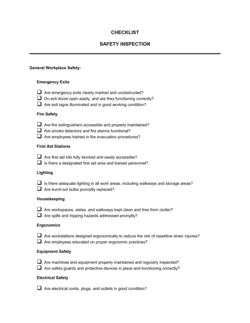
A workplace safety inspection checklist covers the full physical environment β€” fire exits, spill hazards, electrical safety, equipment guards, and more. An ergonomics checklist focuses exclusively on workstation setup and injury-prevention posture. Use the safety inspection for facility-wide compliance audits and the ergonomics checklist for individual workstation assessments.

vs Incident Report Form

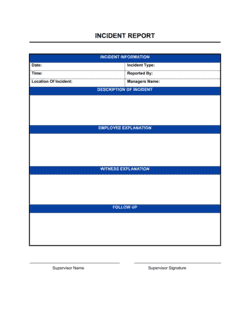
An incident report documents injuries and near-misses after they occur. An ergonomics checklist is a preventive tool completed before injury to identify and correct risk factors. The two documents complement each other β€” a completed ergonomics checklist on file is the employer's best evidence that ergonomic hazards were proactively managed if an incident report is later filed.

vs Employee Onboarding Checklist

An employee onboarding checklist covers the full set of administrative, IT, and procedural steps required to set up a new hire. An ergonomics checklist is a single specialized step within onboarding, focused entirely on workstation safety. Many organizations embed the ergonomics assessment as a required item on the onboarding checklist, but each document serves a distinct purpose.

vs Return-to-Work Form

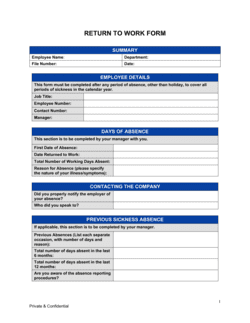
A return-to-work form manages the administrative and medical clearance process for an employee returning after illness or injury. An ergonomics checklist is typically completed as part of the return-to-work process to ensure the workstation has been modified to accommodate any restrictions β€” but the two documents address different steps in the process.

Industry-specific considerations

Professional Services

High screen-time roles make monitor positioning and wrist alignment the dominant risk factors, with assessments typically triggered at onboarding and after office relocations.

Technology / SaaS

Distributed and remote-first teams require a self-assessment home-office version, with IT and HR coordinating equipment stipends for identified deficiencies.

Healthcare

Administrative and nursing station assessments must account for standing and variable-height work surfaces, with special attention to repetitive charting and documentation tasks.

Manufacturing

Production floor assessments focus on workbench height, tool grip, and sustained awkward postures rather than monitor position, and are often required under specific OSHA or WorkSafe standards.

Template vs pro β€” what fits your needs?

PathBest forCostTime
Use the templateHR managers, office managers, and safety officers conducting standard office workstation assessmentsFree15–30 minutes per workstation
Template + professional reviewOrganizations with reported MSD injuries or those preparing for a regulatory inspection$200–$800 for a certified ergonomist spot-check or review session1–2 days
Custom draftedManufacturing, healthcare, or high-injury-rate environments requiring a tailored assessment protocol$1,000–$5,000 for a full ergonomics program design by a certified professional ergonomist2–6 weeks

Glossary

Ergonomics
The science of designing workspaces and tools to fit the physical needs of the user, reducing strain and injury risk.
Musculoskeletal Disorder (MSD)
An injury or pain affecting muscles, tendons, nerves, or joints β€” typically caused by repetitive motion, poor posture, or sustained awkward positions.
Neutral Posture
A body position in which joints are naturally aligned and muscles are under minimal stress β€” the target posture for any ergonomic setup.
Lumbar Support
A chair feature or accessory that supports the natural inward curve of the lower spine, reducing lower back strain during prolonged sitting.
Viewing Distance
The horizontal distance between the user's eyes and the monitor screen, typically recommended at 50–70 cm for standard displays.
Document Holder
A stand or clip positioned adjacent to the monitor to hold reference materials at eye level, reducing repeated neck rotation.
Corrective Action
A specific, documented step taken to fix an identified ergonomic deficiency β€” such as raising a monitor or replacing a chair.
Repetitive Strain Injury (RSI)
Cumulative damage to muscles, tendons, or nerves caused by repeated identical movements, commonly affecting wrists, shoulders, and elbows in office workers.
OSHA General Duty Clause
A US federal requirement (Section 5(a)(1) of the OSH Act) that employers provide a workplace free from recognized hazards, which courts and OSHA inspectors have applied to ergonomic risks.
Workstation Assessment
A structured review of a single employee's work environment to identify physical risk factors and document recommended adjustments.

Part of your Business Operating System

This document is one of 3,000+ business & legal templates included in Business in a Box.

  • Fill-in-the-blanks β€” ready in minutes
  • 100% customizable Word document
  • Compatible with all office suites
  • Export to PDF and share electronically

Create your document in 3 simple steps.

From template to signed document β€” all inside one Business Operating System.
1
Download or open template

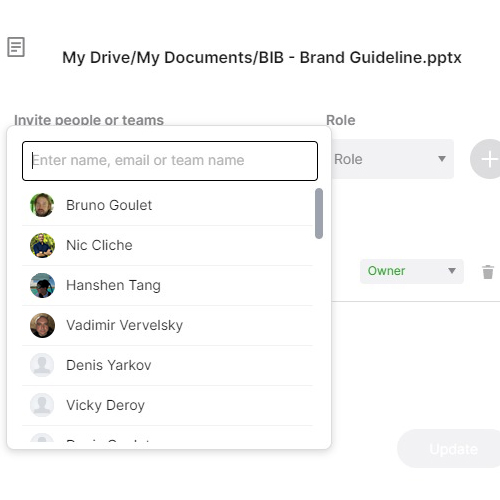
Access over 3,000+ business and legal templates for any business task, project or initiative.

2
Edit and fill in the blanks with AI

Customize your ready-made business document template and save it in the cloud.

3
Save, Share, Send, Sign

Share your files and folders with your team. Create a space of seamless collaboration.

Save time, save money, and create top-quality documents.

β˜…β˜…β˜…β˜…β˜…

"Fantastic value! I'm not sure how I'd do without it. It's worth its weight in gold and paid back for itself many times."

Managing Director Β· Mall Farm
Robert Whalley
Managing Director, Mall Farm Proprietary Limited
β˜…β˜…β˜…β˜…β˜…

"I have been using Business in a Box for years. It has been the most useful source of templates I have encountered. I recommend it to anyone."

Business Owner Β· 4+ years
Dr Michael John Freestone
Business Owner
β˜…β˜…β˜…β˜…β˜…

"It has been a life saver so many times I have lost count. Business in a Box has saved me so much time and as you know, time is money."

Owner Β· Upstate Web
David G. Moore Jr.
Owner, Upstate Web

Run your business with a system β€” not scattered tools

Stop downloading documents. Start operating with clarity. Business in a Box gives you the Business Operating System used by over 250,000 companies worldwide to structure, run, and grow their business.

Free Forever PlanΒ Β·Β No credit card required