1
Download and open the Word file
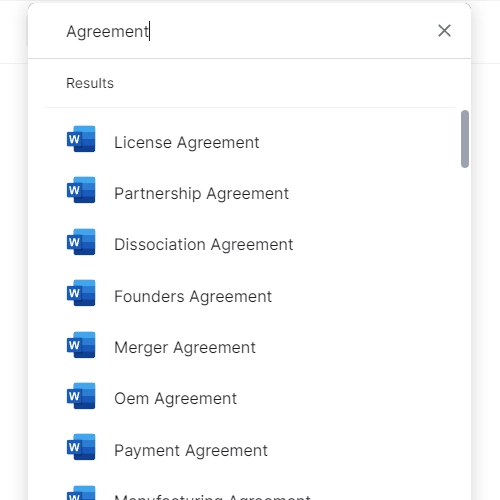
Download the template in Word format. The document is organized by functional category with a table of contents. Use Ctrl+F (or Cmd+F on Mac) to search for a keyword matching your task.
💡 Bookmark the table of contents page — returning to it is faster than scrolling through 10,000 entries.
2
Identify the function and task type you need
Navigate to the relevant section — for example, 'Sales' for outreach, or 'HR' for a job description. Scan the subsection headers to find the task type that matches your immediate need.
💡 If you are unsure which section applies, search for the output you want (e.g., 'cold email' or 'onboarding checklist') rather than the function name.
3
Select a prompt and copy it
Choose the prompt that most closely matches your specific task. Copy the full prompt text, including any [PLACEHOLDER] fields, into your clipboard.
💡 Read the prompt all the way through before copying — some prompts have optional instruction blocks at the end that you may want to remove or activate.
4
Fill in all [PLACEHOLDER] fields
Replace every bracketed placeholder with your specific information — company name, job title, audience, product, tone, or any other variable. Do not leave any placeholders blank before submitting.
💡 The more specific your placeholder values, the better the output. '[B2B SaaS CFO at a 50-person company]' outperforms '[target audience]' every time.
5
Paste the completed prompt into ChatGPT or your preferred LLM
Open your AI tool of choice, start a new session, and paste the completed prompt. For best results, use a model with a large context window — GPT-4o or equivalent — for longer prompts.
💡 If the output misses the mark, add a follow-up instruction rather than restarting: 'Make it shorter,' 'Use a more conversational tone,' or 'Add two more examples.'
6
Review, edit, and apply the output
Treat the AI output as a strong first draft, not a final deliverable. Review for factual accuracy, brand voice, and any details only you would know. Edit before publishing, sending, or sharing internally.
💡 For customer-facing outputs — emails, social posts, press releases — always have a second person review the final copy before it goes out.
7
Save your best customized prompts for reuse
When you modify a prompt and get a particularly strong result, save the customized version in a separate team document. Over time this builds your company's own bespoke prompt library.
💡 Tag saved prompts with the output type and date so team members can find and update them as your products, personas, and tone of voice evolve.