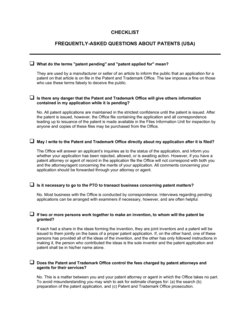
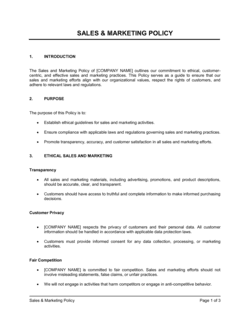
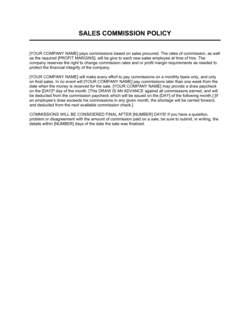
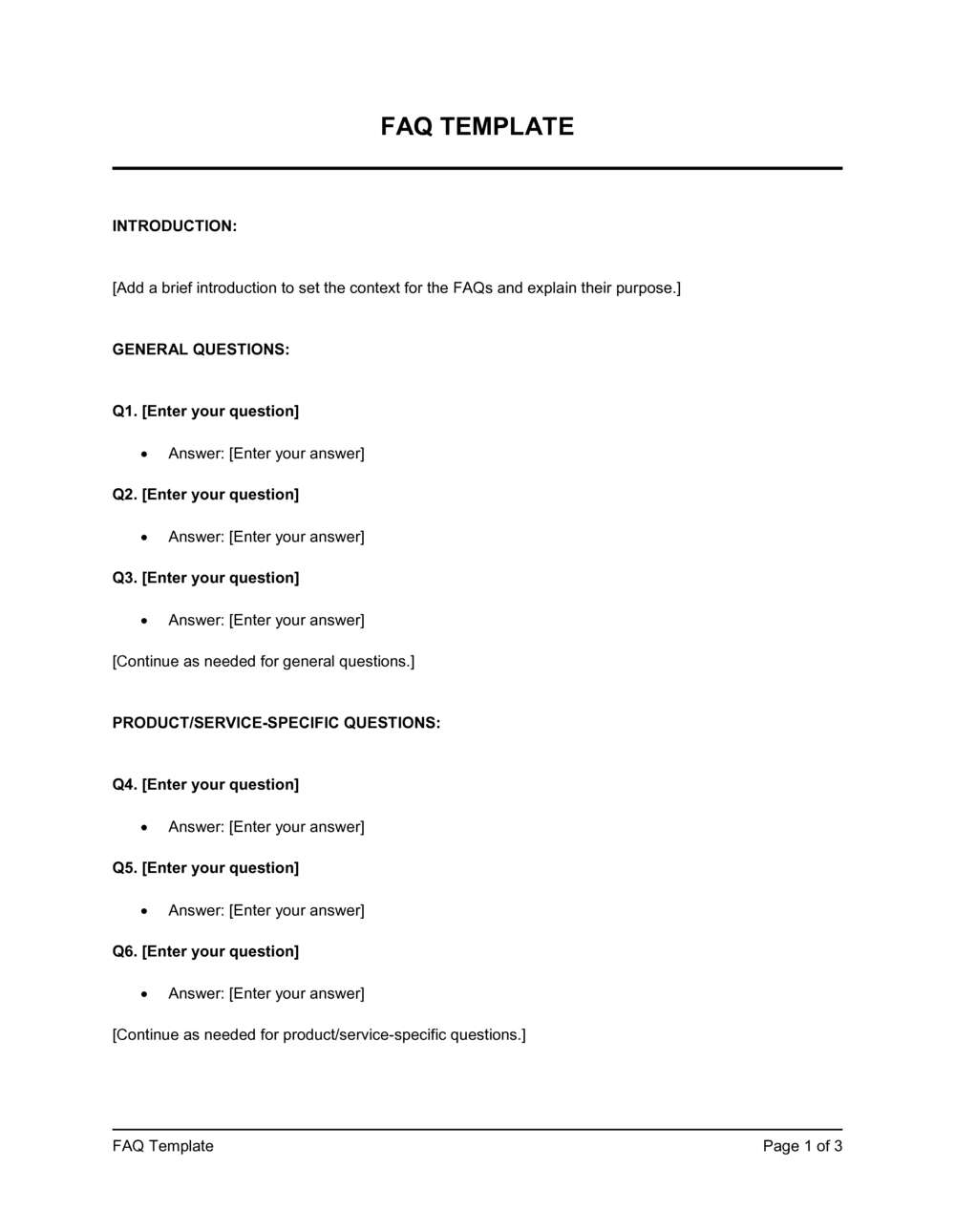
FAQ Template

Free to read • Save or share with one click

FreeFAQ Template

At a glance

What it is
An FAQ Template is a structured Word document that organizes common questions and their answers into named categories, with escalation paths for unanswered queries and a maintenance log to keep content current. This free download gives you a ready-to-edit framework you can adapt for a customer help center, an employee onboarding portal, or a product knowledge base — then export as PDF or publish directly.
When you need it
Use it when launching a new product or service, onboarding a wave of new employees, or when support volume reveals a repeating set of questions that your team answers individually instead of once in writing.
What's inside
A header and purpose statement, categorized question-and-answer pairs, escalation contact details, a version-history log, and a review schedule to ensure answers stay accurate over time.

What is an FAQ Template?

An FAQ Template is a structured Word document that gives teams a repeatable framework for organizing common questions and their answers into named categories, with built-in sections for escalation contacts, a reader feedback prompt, and a version history log. Rather than writing a new format from scratch each time a product launches or a policy changes, you fill in the provided structure — question headings, direct answers, and category headers — and publish a document that serves customers, employees, or both. The template also includes a review schedule section so the FAQ stays accurate long after the initial publication date.

Why You Need This Document

Every support ticket answered individually is time your team cannot spend on higher-value work. When the same 20 questions arrive repeatedly — about pricing, return policies, onboarding steps, or system access — the absence of a written FAQ means those answers live only in inboxes and memories, recreated fresh each time. A structured FAQ document deflects repetitive requests before they become tickets, sets consistent expectations for every reader regardless of which team member they happen to reach, and gives new hires a self-serve reference that reduces their ramp time measurably. Without a review log and named content owner, even well-written FAQ documents drift out of date within a product cycle and begin generating the exact confusion they were written to prevent. This template builds the maintenance routine into the document from the start.

Which variant fits your situation?

If your situation is…Use this template
Customer-facing FAQ for a product or service websiteCustomer FAQ Template
Internal employee FAQ for HR policies and benefitsEmployee FAQ Template
New employee onboarding FAQ covering first-week logisticsOnboarding FAQ Template
Event or conference FAQ for attendeesEvent FAQ Template
Product knowledge base article for a specific featureKnowledge Base Article Template
Post-merger or acquisition FAQ for employeesM&A Employee FAQ Template
Crisis or incident communication FAQ for stakeholdersCrisis Communication FAQ

Common mistakes to avoid

❌ Writing answers that bury the response

Why it matters: Readers scan FAQ pages rather than read them linearly. An answer that starts with context or caveats before the actual response causes readers to miss it and contact support anyway.

Fix: Put the direct answer in the first sentence of every response. Move context, caveats, and links to the sentences that follow.

❌ No named review owner or scheduled review date

Why it matters: FAQ documents with no owner go stale within one product cycle. Outdated answers damage credibility and generate the exact support volume the FAQ was designed to prevent.

Fix: Assign a named content owner and a specific review date in the document header before publishing. Add the review as a recurring calendar event.

❌ Combining unrelated questions under a 'General' category

Why it matters: Readers navigating by category cannot predict what is in a 'General' bucket, so they scan every question in it — slower than a targeted search and more likely to result in giving up.

Fix: Create a specific category the moment you have three or more questions on the same subject. If a question has no peers yet, hold it for the next revision cycle.

❌ No escalation path for unanswered questions

Why it matters: A reader who cannot find their answer and has no clear next step either submits a frustrated support ticket or abandons the interaction entirely — both worse outcomes than a direct referral.

Fix: Add a visible escalation section at the end of every FAQ with a named contact, channel, and expected response time.

The 8 key sections, explained

Document header and purpose statement

Table of contents with anchor links

Category 1: [Topic area]

Category 2: [Topic area]

Additional categories (repeat as needed)

Escalation and contact information

Feedback and improvement prompt

Version history and review log

How to fill it out

  1. 1

    Collect your source questions

    Pull the top 15–25 questions from your support ticket history, team inbox, onboarding survey responses, or sales call recordings. Sort them by frequency — most-asked first.

    💡 Run a 30-day export from your helpdesk tool filtered by resolution tag. The top 10 tags almost always become your FAQ categories.

  2. 2

    Group questions into 3–7 named categories

    Cluster related questions under a single descriptive category header — e.g., 'Billing and payments', 'Account setup', 'Shipping and returns'. Aim for 3–6 questions per category.

    💡 If a category has only 1–2 questions, merge it with the closest related category or hold those questions for the next review cycle.

  3. 3

    Write direct, first-sentence answers

    Draft each answer so the first sentence fully responds to the question. Add clarifying detail or steps in the following sentences. Keep each answer under 100 words unless a step-by-step process genuinely requires more.

    💡 Read your draft answer aloud. If the first sentence doesn't stand alone as a complete response, rewrite it until it does.

  4. 4

    Add links and escalation contacts

    For answers that reference a policy, form, or external resource, embed a direct link. Add the escalation section last, naming a specific contact or channel and a response-time commitment.

    💡 Link to living documents (e.g., a policy page that updates automatically) rather than PDFs that go stale — one fewer place to maintain.

  5. 5

    Build the table of contents

    Once all categories and questions are in place, create a linked table of contents at the top. Use heading styles in Word so the TOC auto-generates and updates when content changes.

    💡 Use Word's built-in 'Update Table' function after any content change so anchor links stay accurate.

  6. 6

    Set a review owner and schedule

    Name a single content owner responsible for accuracy, and set a review date — quarterly for fast-changing topics, annually for stable policies. Add both to the document header and the version history table.

    💡 Put the review date in the responsible person's calendar as a recurring event the day you publish — reviews that aren't scheduled don't happen.

  7. 7

    Publish and announce the document

    Share the FAQ to the intended audience — embed it in your help center, upload it to your intranet, or link it from your onboarding checklist. Send a brief announcement so readers know it exists.

    💡 Include the FAQ link in your email signature and auto-reply messages for at least 30 days after launch to drive initial adoption.

Frequently asked questions

What is an FAQ template?

An FAQ template is a pre-structured document that gives you a repeatable format for writing, organizing, and maintaining question-and-answer content. It includes category headers, a table of contents, answer formatting guidance, escalation sections, and a version log — so you spend your time writing answers rather than designing the document structure from scratch.

When should I create a FAQ document?

Create a FAQ when the same question is being answered individually three or more times by your team. Common triggers include a product launch, an employee onboarding wave, a policy change, or a spike in support tickets around a specific topic. A FAQ converts one-to-one answers into a one-to-many resource, freeing your team's time for non-repeating work.

How many questions should a FAQ document include?

Most effective FAQ documents contain 15–40 questions organized into 3–7 categories. Fewer than 10 questions usually signals that the FAQ is incomplete; more than 60 questions in a single document suggests it should be split into separate topic-specific documents or a full knowledge base. Start with your top 20 most-asked questions and add more based on reader feedback.

What is the difference between a FAQ and a knowledge base?

A FAQ is a single document or page covering the most common questions about a specific topic, product, or policy. A knowledge base is a searchable, multi-article repository covering many topics in depth. FAQs are faster to create and easier to scan; knowledge bases scale better when you have hundreds of topics and need search functionality. Most organizations start with a FAQ and graduate to a knowledge base as content volume grows.

How do I structure a FAQ for SEO?

Use a question as a heading (H2 or H3) and put the direct answer in the first paragraph directly below it. Add FAQPage schema markup to signal structured data to search engines, which can enable expanded Q&A rich results in Google. Keep each answer between 40 and 300 words, use plain language that matches how people actually phrase searches, and link to deeper content where relevant.

How often should a FAQ document be updated?

Update a FAQ whenever a product, policy, or process it covers changes — immediately, not at the next scheduled review. In addition, schedule a proactive full review quarterly for fast-changing topics (pricing, features, policies) and annually for stable content. Assign a named content owner so reviews actually happen; documents with no designated owner are reliably out of date within two quarters.

Can I use this FAQ template for both internal and external audiences?

Yes. The same template structure works for customer-facing help pages and internal employee resources — the format, category logic, and maintenance routine are identical. The main differences are tone (more formal for external audiences, more direct for internal) and the escalation contacts you include. Maintain separate files for each audience so internal process details are never accidentally published in the customer version.

What tone should FAQ answers be written in?

Write in plain, direct language at the reading level of your least technical audience member. Use active voice, short sentences, and second person ('you'). Avoid jargon, acronyms without definitions, and hedging phrases like 'it depends' without immediately explaining what it depends on. For customer-facing FAQs, aim for a reading grade level of 7–9; for internal technical FAQs, match the baseline knowledge of the role receiving the document.

How this compares to alternatives

vs Knowledge Base Article Template

A knowledge base article covers a single topic in depth — step-by-step instructions, screenshots, and detailed context. A FAQ document addresses many different questions briefly. Use a FAQ for a fast-scan overview and a knowledge base article when a topic requires more than 300 words to answer properly. Most help centers use both: a FAQ as the entry point and linked articles for detail.

vs Standard Operating Procedure (SOP)

An SOP defines exactly how a process must be performed, step by step, for a person executing it. A FAQ answers questions for someone trying to understand a product, policy, or service. SOPs are process documentation; FAQs are reference documents. An SOP for a support process and a FAQ for customers can coexist in the same operational system.

vs User Manual Template

A user manual provides comprehensive, sequential documentation of an entire product or system — structured for someone learning it from scratch. A FAQ is non-sequential and question-driven, structured for someone with a specific, immediate need. User manuals are read once; FAQs are consulted repeatedly. Complex products typically need both.

vs Employee Handbook

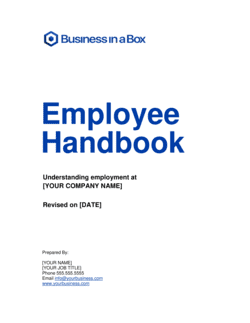
An employee handbook is the authoritative policy document covering all aspects of employment, written as policy statements. An employee FAQ is a companion document that translates those policies into plain-language Q&A pairs for quick reference. The handbook governs; the FAQ explains. Both should be consistent — when policy changes, update both.

Industry-specific considerations

SaaS / Technology

Feature-specific FAQs tied to product releases, with version numbers in the header and links to changelog entries for technical depth.

E-commerce / Retail

Shipping, returns, payment methods, and account FAQ categories that reduce pre-purchase hesitation and post-purchase support tickets.

Healthcare

Patient-facing FAQs covering appointment booking, billing, and insurance — with clear escalation paths and a disclaimer that answers do not constitute medical advice.

Professional Services

Engagement FAQs covering scope, deliverables, invoicing, and confidentiality — used to set client expectations before an engagement begins.

Template vs pro — what fits your needs?

PathBest forCostTime
Use the templateTeams writing their first FAQ or standardizing an existing set of answers for internal or customer useFree2–4 hours for 20–30 questions
Template + professional reviewCustomer-facing FAQs for regulated industries or products where answer accuracy carries legal or compliance weight$100–$500 for a subject-matter expert or copyeditor review1–2 days
Custom draftedEnterprise knowledge bases, multilingual FAQ programs, or FAQ content integrated into a CMS with structured data and search$1,000–$5,000+ for a content strategist or technical writer2–6 weeks

Glossary

FAQ
Frequently Asked Question — a format that pairs a common question with a direct, pre-written answer to reduce the need for one-on-one responses.
Escalation Path
The contact, channel, or process a reader should follow when their question is not answered by the FAQ document.
Knowledge Base
A searchable repository of articles, FAQs, and guides that users consult to self-serve answers without contacting support.
Ticket Deflection
The reduction in inbound support requests achieved when users find answers in self-serve content before submitting a ticket.
Version History
A log that records each revision to a document — date, author, and what changed — so readers know they are viewing current information.
Review Cadence
A scheduled interval — monthly, quarterly, or annually — at which a document's content is checked for accuracy and updated as needed.
Category Header
A labeled group within an FAQ document that clusters related questions, making it faster for readers to find the section relevant to their situation.
Anchor Link
A hyperlink that jumps the reader directly to a specific section or question within the same document, used in long FAQ pages for navigation.
Content Owner
The named individual or team responsible for keeping a specific FAQ or knowledge base document accurate and up to date.
Schema Markup (FAQPage)
Structured data code added to a web page that signals to search engines that the content is a FAQ, enabling rich results — expanded Q&A pairs — in Google search listings.

Part of your Business Operating System

This document is one of 3,000+ business & legal templates included in Business in a Box.

  • Fill-in-the-blanks — ready in minutes
  • Compatible with all office suites
  • Export to PDF and share electronically

Create your document in 3 simple steps.

From template to signed document — all inside one Business Operating System.
1
Download or open template

Access over 3,000+ business and legal templates for any business task, project or initiative.

2
Edit and fill in the blanks with AI

Customize your ready-made business document template and save it in the cloud.

3
Save, Share, Send, Sign

Share your files and folders with your team. Create a space of seamless collaboration.

Save time, save money, and create top-quality documents.

★★★★★

"Fantastic value! I'm not sure how I'd do without it. It's worth its weight in gold and paid back for itself many times."

Managing Director · Mall Farm
Robert Whalley
Managing Director, Mall Farm Proprietary Limited
★★★★★

"I have been using Business in a Box for years. It has been the most useful source of templates I have encountered. I recommend it to anyone."

Business Owner · 4+ years
Dr Michael John Freestone
Business Owner
★★★★★

"It has been a life saver so many times I have lost count. Business in a Box has saved me so much time and as you know, time is money."

Owner · Upstate Web
David G. Moore Jr.
Owner, Upstate Web

Run your business with a system — not scattered tools

Stop downloading documents. Start operating with clarity. Business in a Box gives you the Business Operating System used by over 250,000 companies worldwide to structure, run, and grow their business.

Start free · No credit card required